
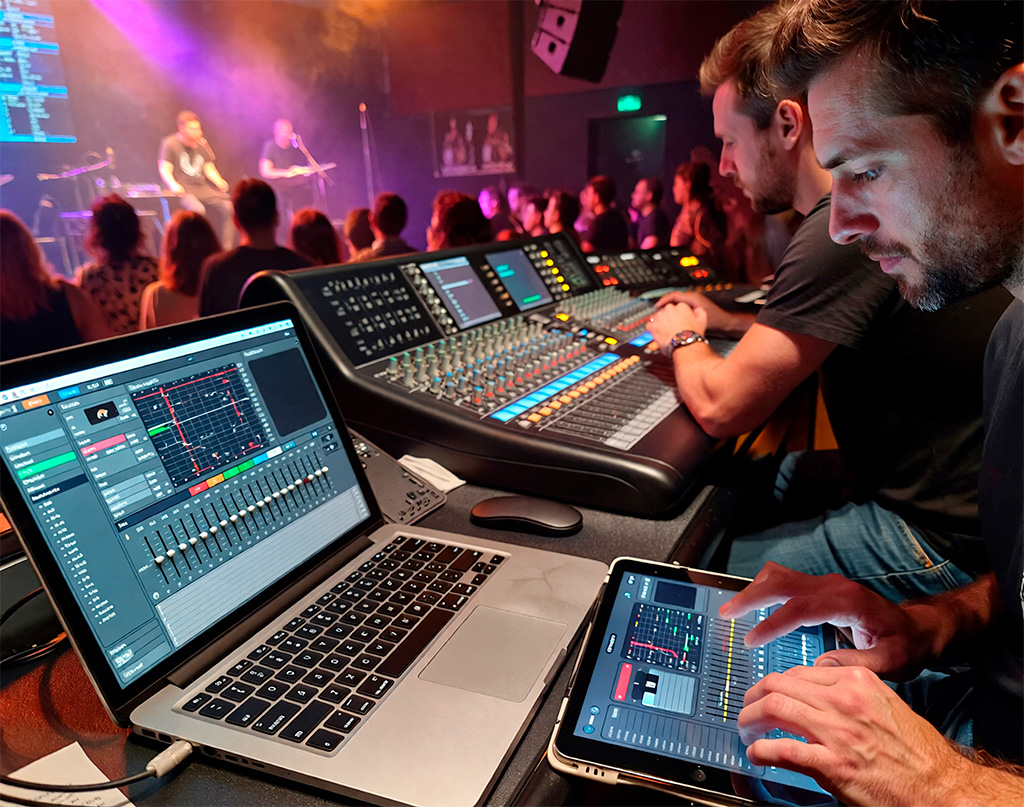
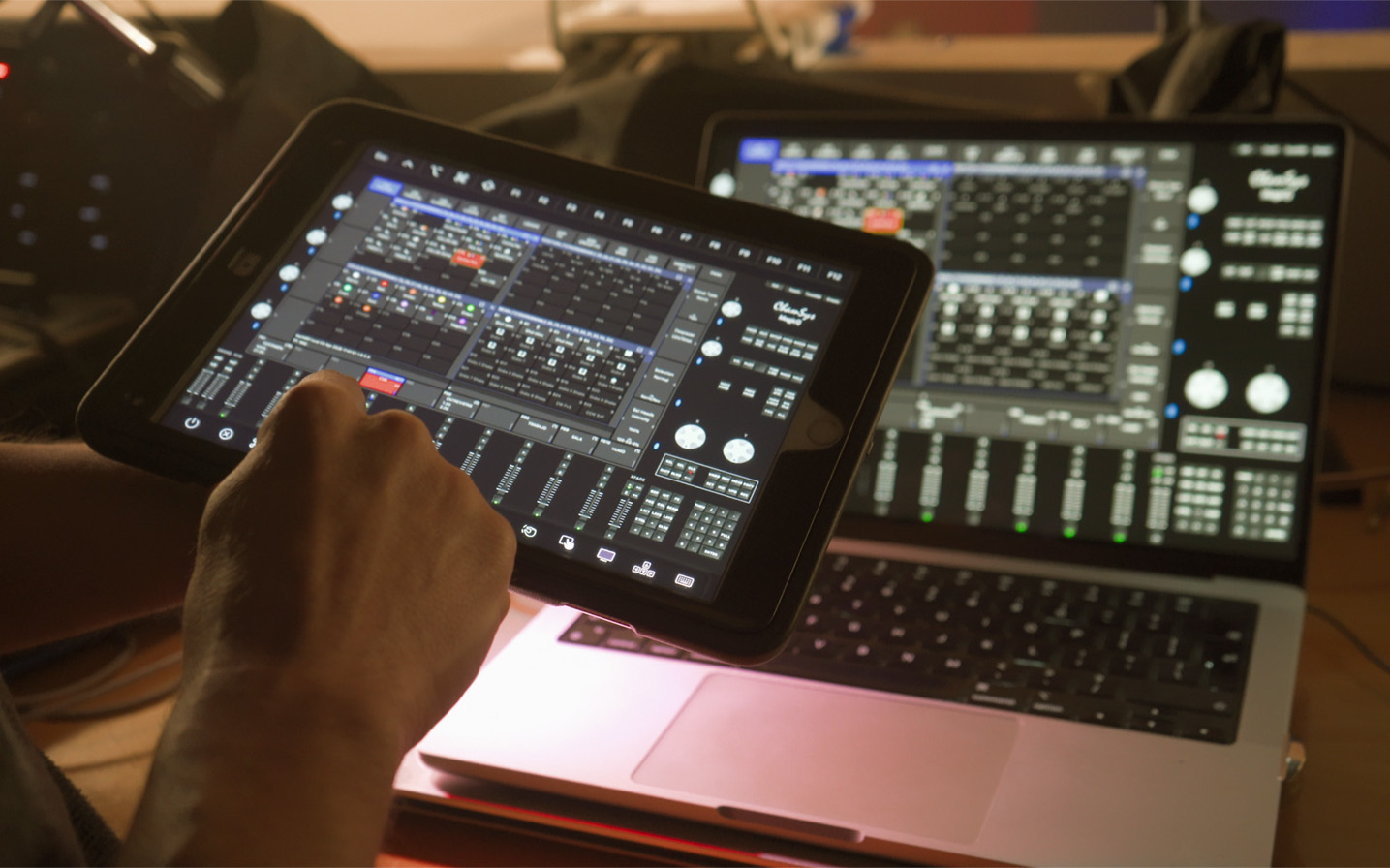
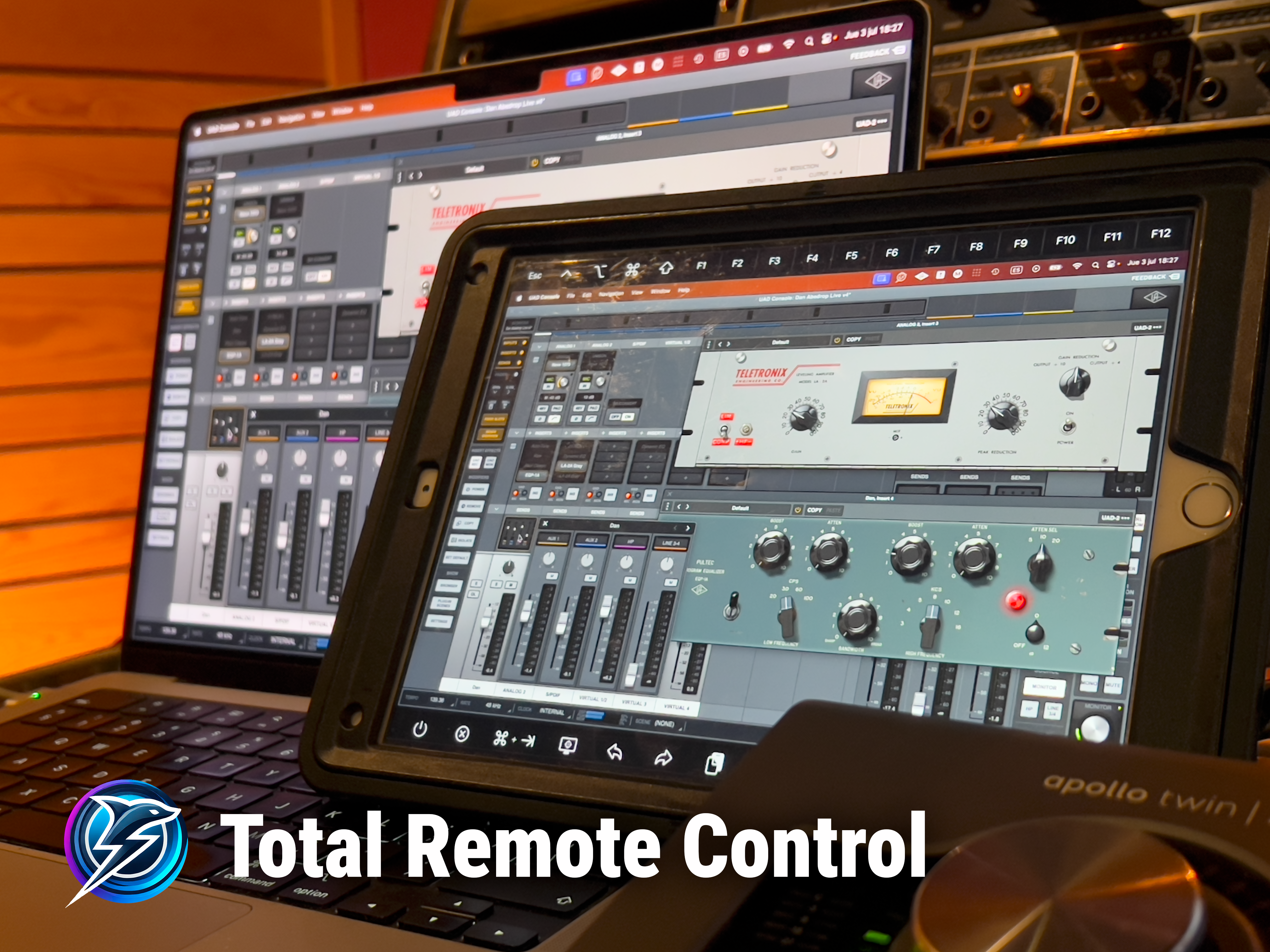
🎯 Goal: control MagicQ from an iPad right where you make lighting decisions
If you use ChamSys MagicQ on a laptop with a MagicDMX dongle, you have probably faced this situation:
- You program stuck at the FOH position or in a booth.
- You tweak beams and looks without really seeing how the show feels from the audience’s point of view.
- If you want to move around the room, you either carry the laptop with you or you give up on making fine adjustments.
The official MagicQ remote app is a very powerful option in many setups, but with MagicDMX there are some important limitations: you cannot always use the official remote and, even when you can, you still do not have the full MagicQ workspace in front of you like on your computer.
In this guide we show you a different way to do it:
Turn your iPad into a full touch surface for MagicQ using Total Remote Control, even with MagicDMX, and work directly on your show from anywhere in the venue.
🧩 The typical challenge when running MagicQ from a laptop
Imagine the usual lighting setup:
- A laptop at FOH or in a control booth.
- MagicQ running on that computer.
- A MagicDMX dongle sending DMX to the rig.
- A control network that all your production devices rely on.
In that context, several very real-world issues come up:
- Doing focus from FOH is uncomfortable: you do not see the light with the same perspective as the audience.
- Adjusting gobos, colours and levels from a single fixed point does not reflect how the whole room reacts.
- Walking around with the laptop is awkward and risky for the gear.
- The official remote system might not be available with your current licence or hardware.
You need something that allows you to:
- See exactly the same thing you see on the MagicQ screen.
- Open, program and operate MagicQ directly from the iPad, using the same show file you already work with.
- Keep latency low enough so control feels natural both while walking around the venue and while programming.
💡 What Total Remote Control brings to this MagicQ setup
Total Remote Control is a system made of two apps:
- A server app running on the computer where MagicQ is installed. It captures the screen and sends it as a low-latency video stream.
- A client app for iPad that displays that screen and translates your touches into clicks, drags and keystrokes on the computer.
For MagicQ, the key points are:
- The computer does not know you are not physically there: it thinks you are still using a mouse and keyboard.
- You do not depend on any specific remote mode or licence inside MagicQ.
- You see the full MagicQ interface: main window, Execute, Programmer, palettes, patch, cue lists, all your views… exactly as on the computer monitor.
On top of that, you can decide how you want to see the desktop on the iPad:
- Mirror the same screen you see on the computer.
- Or work with an extended desktop, where part of your workspace stays on the physical monitor and another part lives on the remote screen you see from the iPad.
This lets you, for example:
- Keep auxiliary tools (players, audio software, system utilities) on the computer’s monitor.
- Dedicate the iPad to the MagicQ view you care about at each moment: an Execute page for operation, a more detailed view for programming, and so on.
And beyond MagicQ, you are controlling the entire computer from your iPad:
- You can launch other applications (playback software, video, audio consoles control, documentation, browser, messaging…).
- You can jump between MagicQ and the rest of your tools without leaving your position in the room.
In practice, the iPad becomes a touch screen for your lighting computer that you can take on stage, into the middle of the audience area, or wherever you need to be to make good lighting decisions.
🎬 How to control ChamSys MagicQ from an iPad step by step (practical example)
To show how this works in real life, here is a practical step-by-step example of using MagicQ from an iPad with Total Remote Control. To follow along in your own rig you only need:
- A computer (laptop or desktop) with:
- ChamSys MagicQ installed.
- A MagicDMX Full dongle or another suitable DMX interface for your rig.
- An iPad with the Total Remote Control Client app installed.
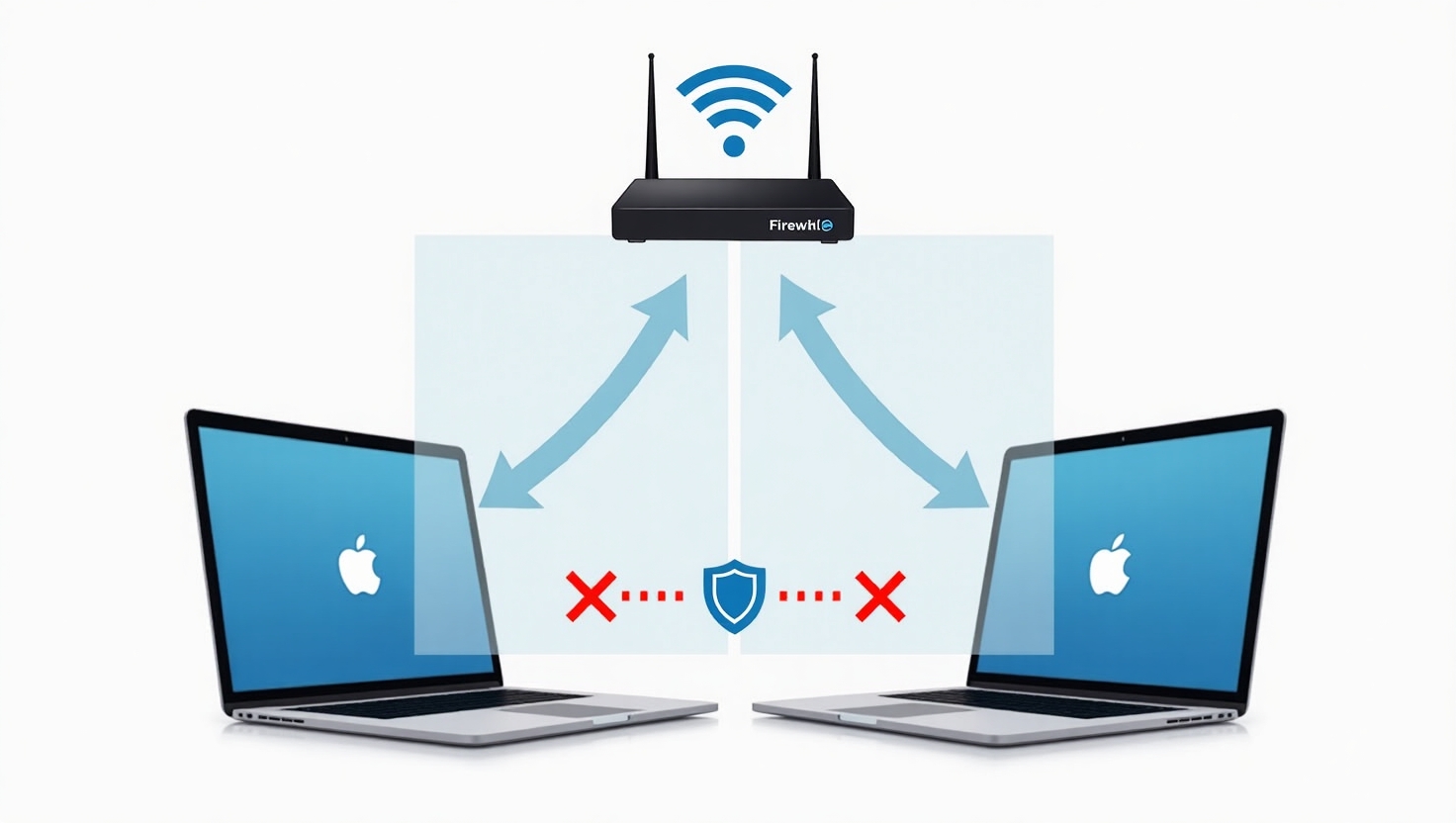
- The computer and the iPad connected to the same local network, whether it is a control network or a production network, as long as both devices can see each other.
- Total Remote Control installed and activated on that computer.
1. Set up the network
- Make sure the computer and the iPad are connected to the same local network.
- Check that there are no VPNs or guest networks preventing the devices from seeing each other.
- Keep that network as clean as possible from unnecessary traffic so you get smooth response.
With this in place, you have a solid foundation for low-latency video and touch control between the computer and the iPad.
2. Launch MagicQ and work with your usual show
On the computer:
- Open MagicQ.
- Load the show you usually work with or a test file; you do not need to prepare a special session for the iPad.
- Use the same views and windows you use when you are physically in front of the laptop:
- Programmer, palettes, patch, cue lists, Execute Window, etc.
- If you work with multiple screens or an extended desktop, you can split your windows:
- Keep auxiliary tools you do not need to touch in front of the audience on the computer’s physical screen.
- Dedicate the part of the desktop you will view on the iPad to the MagicQ window you want always handy (for example, Execute for live operation, or a more complete programming view).
The key idea is: what you see and do from the iPad is exactly what you would see and do at the computer, just in a touch-friendly and mobile way.
3. Start Total Remote Control on the computer
- Open the Total Remote Control server app on the computer.
- Select the screen or area of the desktop you want to control from the iPad (either the main screen or the extended one where you placed MagicQ).
- Leave the server ready to accept connections on the local network.
From this moment on, Total Remote Control will wait for incoming connections from your iPad.
4. Connect the iPad and work directly on MagicQ (and the rest of the system)
On the iPad:
- Open the Total Remote Control Client app.
- Wait until your computer appears in the list of available devices.
- Tap the machine name to connect.
As soon as you see the computer’s screen on the iPad, you can:
- Open and close MagicQ windows directly from the iPad.
- Program cues, edit palettes and work on the patch exactly as if you were in front of the laptop.
- Switch between programming views and operation views without touching the computer.
- Launch other applications on the system (playback software, video tools, team comms, technical documentation…) and jump back to MagicQ in seconds.
All this without changing your show file or the way you program: you simply move the control point from the FOH desk to wherever you have the best view of the rig.
5. Three concrete situations where TRC makes a big difference
With the iPad connected to the computer through Total Remote Control, you can adapt how you work to what each part of the day requires.
1. Programming and patch before soundcheck
You work comfortably at FOH or at any spot with a good view of the stage, iPad in hand:
- You adjust patch and DMX addressing while checking in real time how each fixture responds.
- You create position, colour and beam palettes while seeing the result from different angles in the room.
- You edit cues and stacks directly in MagicQ from anywhere in the venue.
- If you need to check documentation, open a player or launch another app, you do it from the iPad because you are still controlling the entire computer.
2. Focus session and position tweaks in an empty venue
With the rig on and the room empty:
- You walk on stage with the iPad and adjust PAN/TILT while seeing exactly what the artist will see.
- You refine backlight, frontlight and side light with a real-world visual reference.
- You tweak intensity and colour levels without constantly walking back and forth between stage and FOH.
3. Live show operation
During the show:
- You use an Execute-based view with large buttons for main looks, scene changes and effects.
- Triggering looks and cues from the iPad feels as direct as using a dedicated touch controller.
- The computer stays safely in place running MagicQ and MagicDMX; the iPad becomes your mobile control surface.
- If your workflow includes other software (reference tracks, video control, audio control, comms), you can switch between them and MagicQ without leaving the iPad.
In all these situations, you are still working with your usual MagicQ setup, same interface and programming logic, but now you can make decisions from the exact spot where the lighting result matters most—and you have the extra benefit of controlling the whole computer, not just the lighting software.
❓ Frequently asked questions about controlling MagicQ from an iPad
Can I control ChamSys MagicQ from an iPad without the official remote app?
Yes. With Total Remote Control you actually control the computer that is running MagicQ, so you can operate the full MagicQ interface from your iPad without relying on the official remote app.
What do I need to control MagicQ from an iPad?
You need a computer with MagicQ and your DMX interface (for example MagicDMX Full), an iPad with the Total Remote Control Client app, and both devices connected to the same local network.
Can I program, not just trigger cues, from the iPad?
Yes. On the iPad you see the exact same MagicQ interface as on the computer, so you can program, patch fixtures, edit palettes and work on your cue lists just as if you were sitting at the laptop.
🔚 Conclusion: the iPad as a full control surface for MagicQ and your computer
To sum up:
- MagicQ is a very powerful tool in laptop-based setups with MagicDMX.
- The real bottleneck is not the software itself, but where you are forced to stand to make lighting decisions.
- Total Remote Control turns your iPad into a full touch surface for MagicQ and for the rest of your system, keeping latency low and without depending on specific remote modes.
- You can work either mirroring the main computer screen or using an extended desktop, splitting windows between the physical monitor and the iPad depending on what you need at each moment.
If you want to bring this workflow into your next production, you can:
- Download Total Remote Control from the official website.
- Try it with your usual MagicQ show.
- Define programming and operation layouts specifically designed to work from the iPad, without changing the way you program.
And if you have a specific setup or very particular lighting questions, feel free to contact us at:
support@total-remote-control.com
We will be happy to help you refine your workflow with MagicQ, MagicDMX and Total Remote Control so your shows become more consistent, more controllable and more comfortable to operate.