
🎯 Goal: turn your iPad into a touchscreen for your Mac
Macs do not have a built-in touchscreen, but a lot of tasks would benefit enormously from being able to touch the interface directly:
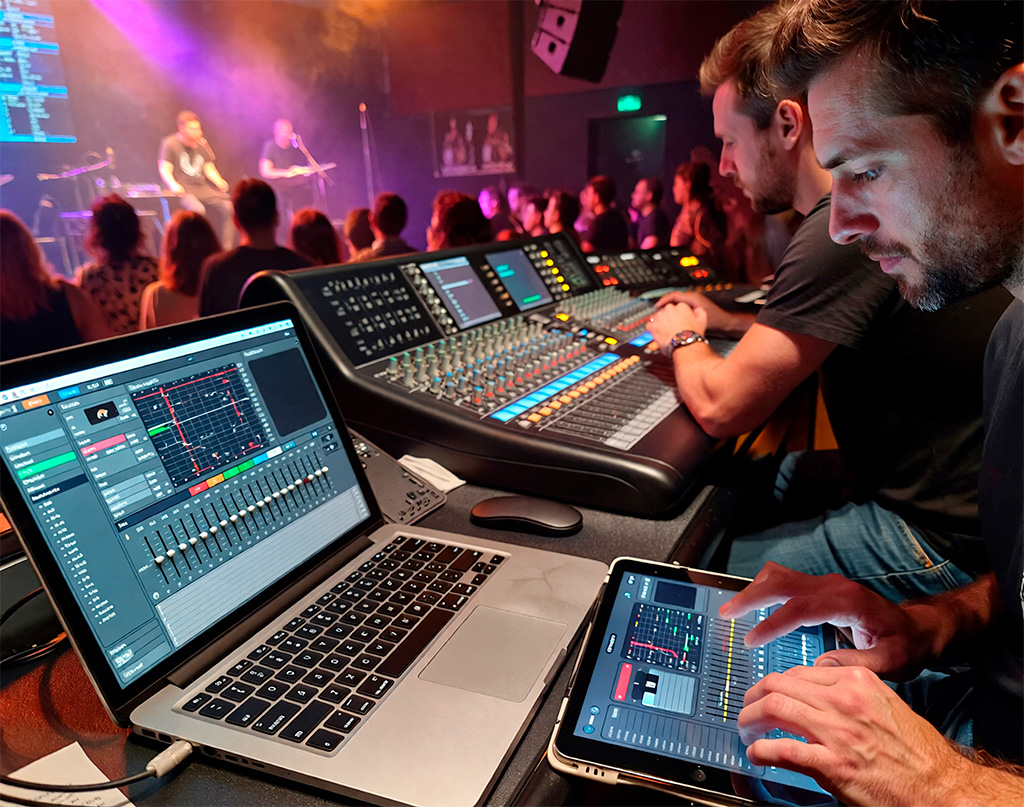
- Adjusting faders and plugins in live sound software.
- Moving controls in a video mixer or color grading tool.
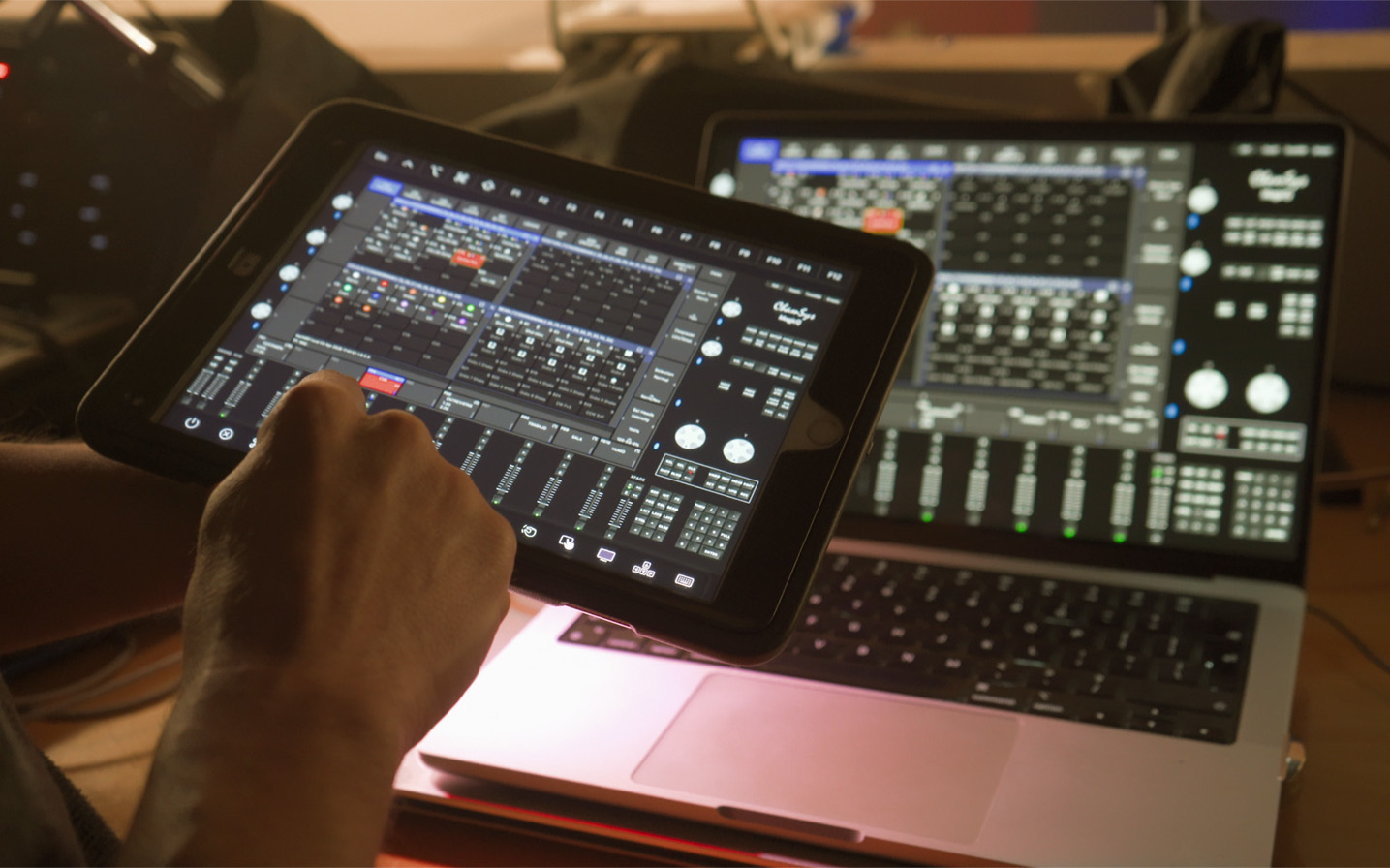
- Changing scenes in lighting software or firing cues.
- Reorganising windows and triggering shortcuts without a mouse or keyboard.
- Drawing directly on the screen, annotating or highlighting details in real time.
If you want to add a touch surface to any Mac that does not include a touchscreen, you can take advantage of something you probably already own to work on your apps with your fingers:
your iPad acting as a touchscreen connected to the Mac, with low latency and full control over the system.
In this guide we show you how to do it step by step using Total Remote Control (TRC), and which extra advantages you get, such as Virtual Deck, a touch macro panel that turns your iPad into a real control surface.
Although we mainly talk about the iPad, the client app also runs on iPhone, in case you prefer a more compact touch controller.
✅ What you need to use your iPad as a touchscreen for your Mac
To follow the steps in this article you only need:
- A Mac compatible with Total Remote Control, running macOS 12 or later.
- An iPad where you install the TRC client app
(you can also use an iPhone; in this article we focus on the iPad because of the larger screen). - Both devices:
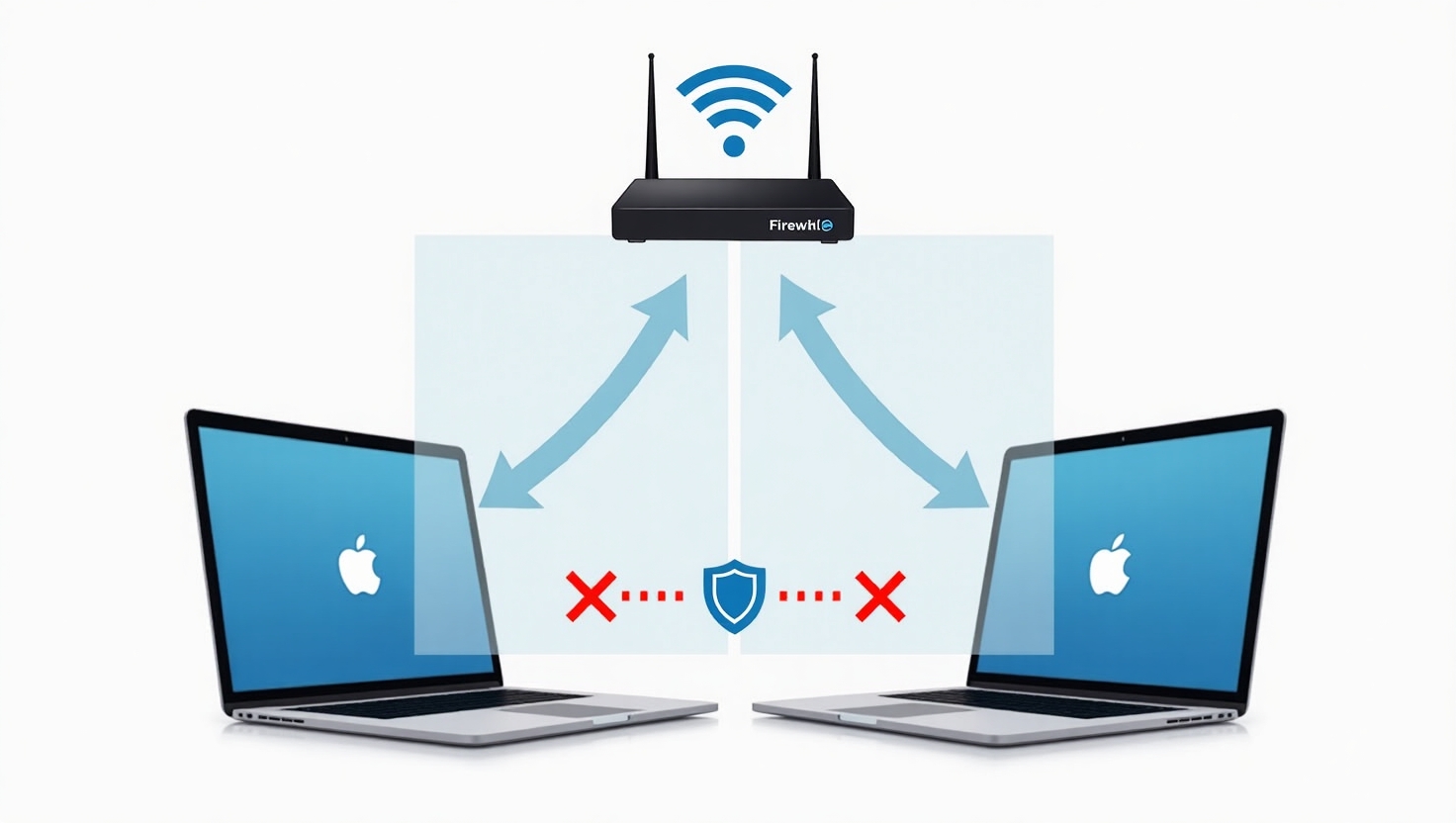
- Connected to the same local network,
- or directly connected via USB, using USB-only connection mode.
- Total Remote Control installed on both:
- TRC for macOS (server app).
- TRC for iPad / iPhone (client app).
Once installed and authorised, TRC lets you:
- Have the iPad (or iPhone) see any of the Mac’s displays.
- Create an additional “Extend desktop” that acts as a virtual display for iOS devices.
- Control the Mac through touch gestures and built-in tools (function bar, trackpad mode, etc.).
- Open Virtual Deck, a fully configurable button and macro panel managed from the Mac.
- Register multiple iOS devices and use them at the same time: as many iPads and iPhones as you need connected to the same Mac.
💡 How Total Remote Control fits into this workflow
Total Remote Control is the piece that connects your Mac with your iOS devices and gives you flexibility to organise screens and touch control. From TRC you can:
-
Choose how you want to use the remote screen
- Connect in mirror mode to any of the Mac’s physical displays.
- Or create and use an extended desktop through “Extend desktop”, designed as a virtual screen dedicated to the iPad or iPhone.
-
Interact with your apps in a fully touch-based way
- Tap to click.
- Long-press for gestures equivalent to secondary click (right click), depending on your configuration.
- Scroll through lists, timelines and mixers.
- Select and drag elements directly with your fingers.
-
Connect and switch between screens quickly
- On the iPad or iPhone you see all available Mac screens (including “Extend desktop”).
- You can switch from one to another by tapping the corresponding entry in Available Devices, without any complications.
-
Speed up your workflow with extra features
- Move an app from one monitor to another with a single action.
- Show or hide the Dock whenever you need.
- Switch the active app from TRC’s toolbar.
- Combine these features with trackpad mode when you need extra precision.
-
Turn your iOS devices into professional tools
In practice, TRC turns your iOS devices into:- External touchscreens for your Mac, either mirrored or extended.
- Advanced control surfaces thanks to Virtual Deck, with buttons and macros tailored to the way you work.
And you can have multiple iPads and iPhones connected to the same Mac simultaneously, each one viewing and controlling whichever screen you choose.
🛠️ Step by step: use your iPad as a touchscreen for your Mac
1. Install Total Remote Control on the Mac
- Download the TRC installer for macOS from total-remote-control.com.
- Unzip the .zip file and run the .pkg installer.
- Follow the instructions until installation is complete.
When you open TRC for the first time, macOS will ask for:
- Screen Recording permission.
- Accessibility permission (to control mouse and keyboard).
Grant both permissions; if macOS asks you to, close and reopen TRC after enabling them.
Once configured, TRC will be available in the Mac menu bar and ready to accept connections from iOS devices.
2. Install Total Remote Control on the iPad (or iPhone)
- Open the App Store on the iPad or iPhone.
- Search for “Total Remote Control”.
- Install the app and wait for it to appear on the home screen.
- Open TRC on the iOS device.
The first time you open the app you will see the main screen with the side menu:
- Available Devices
- Configuration
- Gestures
- Help
By default you will see Available Devices, where all accessible Mac displays are shown over the network or via USB.
3. Connect your iPad to the Mac
With TRC running on both devices:
- Make sure the Mac and the iPad (or iPhone) are on the same local network or directly connected to each other via USB.
- On the iPad, in the Available Devices section, you will see a list of entries.
Each entry shows:- The Mac name.
- The specific display you will connect to (for example “Built-in Retina Display”, “Display 2” or “Extend desktop”).
- Tap the entry for the display you want to use: TRC will connect to that view and start showing it on the iPad.
From here you can decide how you want to use each device:
- If you choose a physical Mac display, the iPad will mirror it and you will be able to interact with everything on it using touch.
- If you choose “Extend desktop”, TRC will create a new virtual display on the Mac, dedicated to that connection, which you can arrange from System Settings → Displays just like any external monitor.
You can repeat this process with as many iPads and iPhones as you like: they can all connect to the same Mac, each one to the screen that suits you best.
4. Use the iPad as a touchscreen for your Mac
Once the connection is established, the selected display will appear on the iPad and you will be able to:
-
Tap any button, menu or control as if it were native.
-
Scroll through lists and timelines.
-
Drag windows within the remote display.
-
Use TRC’s toolbar to:
- Show/hide the Dock.
- Switch between apps.
- Move an app from one display to another.
- Turn on trackpad mode for more precise movements.
- Open the iPad or iPhone keyboard to type text or shortcuts.
In practice you are working on your Mac with a real touch interface, without changing anything in the operating system: the Mac still believes it is receiving mouse, keyboard and shortcut input.
🎚️ Use cases with live sound software and other environments
Here are some situations where using your iPad as a touchscreen for your Mac really changes your workflow.
1. Live sound software
If you use a Mac to:
- Mix the band with live sound software.
- Trigger effects, sends or snapshots from the computer.
- Control processors, virtual racks or plugins in real time.
With TRC you can:
- Dedicate an extended display on the Mac exclusively to your live sound software.
- Send that display to the iPad via “Extend desktop”.
- Adjust faders, EQ, compressors and sends by touching the controls directly.
- Draw automation or add visual notes on the interface if your software supports it.
The result feels very close to having a professional touchscreen console, but using the Mac and iPad you already own.
2. Lighting and video control
In setups where the Mac is used to:
- Control lighting software.
- Trigger video, multimedia content or graphics.
- Coordinate show cues.
You can:
- Have the iPad show the main window of your lighting app or the video cue panel.
- Fire scenes, cue lists or effects from anywhere in the venue.
- Switch between programming and show views without touching the Mac.
3. Audio, video and creative editing
In studio or post-production:
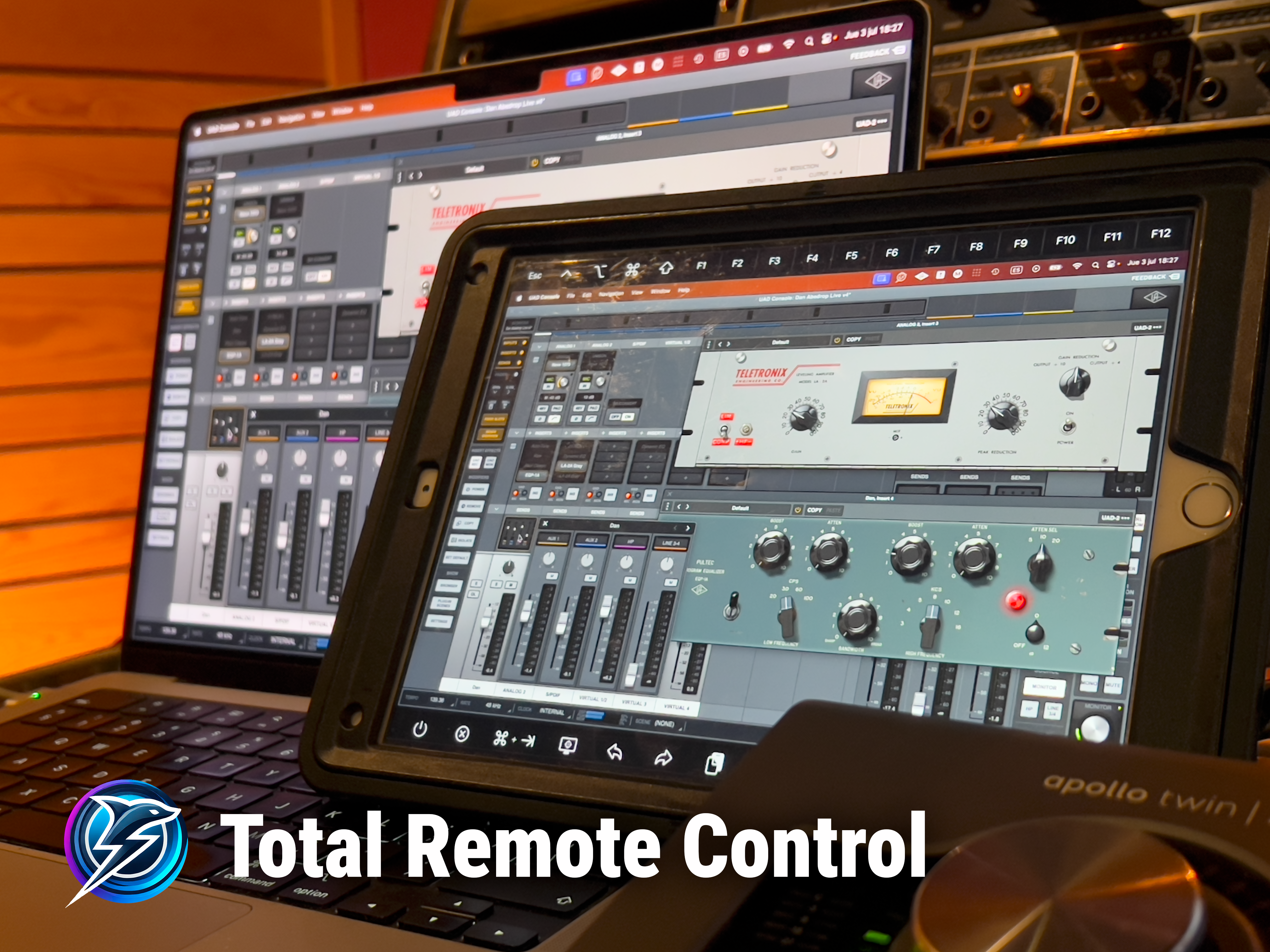
- Use the iPad as a dedicated screen for your DAW mixer, your video editor’s color page, or any specific panel in your creative software.
- Manipulate sliders, knobs, curves and nodes with your fingers.
- Draw directly on the interface if the application supports it (annotation or drawing tools, for example).
- Combine the precision of trackpad mode with the convenience of shortcuts and TRC’s function bar.
🧱 More than just a touchscreen: Virtual Deck
On top of turning your iPad into a touchscreen for your Mac, Total Remote Control includes Virtual Deck, one of its most transformative features.
Virtual Deck is:
- A fully customisable button panel that appears on the iPad or iPhone.
- Configured from the TRC app on the Mac.
- Able to trigger macros with one or multiple steps.
With Virtual Deck you can:
- Create buttons that:
- Open or switch applications.
- Trigger complex key combinations (advanced shortcuts).
- Adjust system volume or brightness.
- Open specific projects, folders or URLs.
- Organise buttons into pages or layouts depending on the show or project.
- Decide whether the Deck hides automatically after running a macro or stays visible.
In practice, your iOS device becomes both:
- A touchscreen for your Mac (real or extended display).
- An advanced macro control surface with your favourite actions, all inside TRC.
❓ FAQ: using an iPad as a touchscreen for a Mac
Do I need a Mac with a built-in touchscreen?
No. The Mac remains a standard Mac; what we do is use the iPad or iPhone as a screen that receives the image and sends touch input back.
Can I use the iPad as an extended display, not just a mirror?
Yes. Just select “Extend desktop” in TRC for iPad or iPhone. A virtual display will be created on the Mac dedicated to that connection.
Can I keep using my mouse and keyboard while using the iPad?
Of course. The iPad is an extra control point: you can move seamlessly between keyboard, mouse and touch input.
Is this useful for live sound software?
Yes. It is one of the most common use cases: controlling mixers, processors and plugins in real time with touch-friendly faders and buttons.
What exactly is Virtual Deck and what will I use it for?
It is a button and macro panel configured from the Mac. It lets you fire shortcuts, open apps, adjust volume, change layouts, and more, all with a single tap on the iPad or iPhone.
Can I connect several iPads or iPhones to the same Mac?
Yes. TRC allows multiple iOS devices to connect to the same Mac at the same time, each one viewing and controlling whichever display you choose.
🔚 Conclusion: your iPad as a touch control hub for your Mac
In summary:
- With Total Remote Control you can use your iPad as a touchscreen for your Mac, either mirroring an existing monitor or using a dedicated extended desktop.
- You do not change anything on the Mac itself: you simply add a fast, low-latency touch surface for your live sound software, video, lighting or editing tools.
- On top of the touchscreen, you get Virtual Deck, which turns the iPad (or iPhone) into a macro surface with custom buttons for your entire workflow.
- You can also have multiple iOS devices connected to the same Mac, enabling distributed layouts across stage, FOH or studio.
If you want to try this workflow in your next shows, studio sessions or creative projects:
- Download and install Total Remote Control on your Mac.
- Install the client app on your iPad or iPhone.
- Create an “Extend desktop” display and dedicate it to your main software.
- Start designing your first Virtual Deck with the buttons you use the most every day.
And if you have a very specific setup or questions, feel free to contact us at:
support@total-remote-control.com
We will be happy to help you get the most out of your Mac and your iOS devices with Total Remote Control.